No-code integrations with Zapier and Make
If your CRM works with Zapier or Make, Pochuto connects to it without a developer: a personal link is created on its own when a deal closes, and a customer complaint lands in your CRM right away. All you need is an API key from the dashboard and the Business plan
What it gives you
Zapier and Make are services that pass data between programs by your rules, with no programming. You build a chain of steps, for example: a deal in your CRM moves to "Completed", Pochuto creates a personal link, the link goes to the customer by SMS. Another example: a customer leaves a complaint, and a card appears in your CRM or a message arrives in Slack
Under the hood it is the same API and webhooks that developers use. So the same conditions apply: Business or the trial period, and a key only works with what you allowed it to do
Where to get an API key
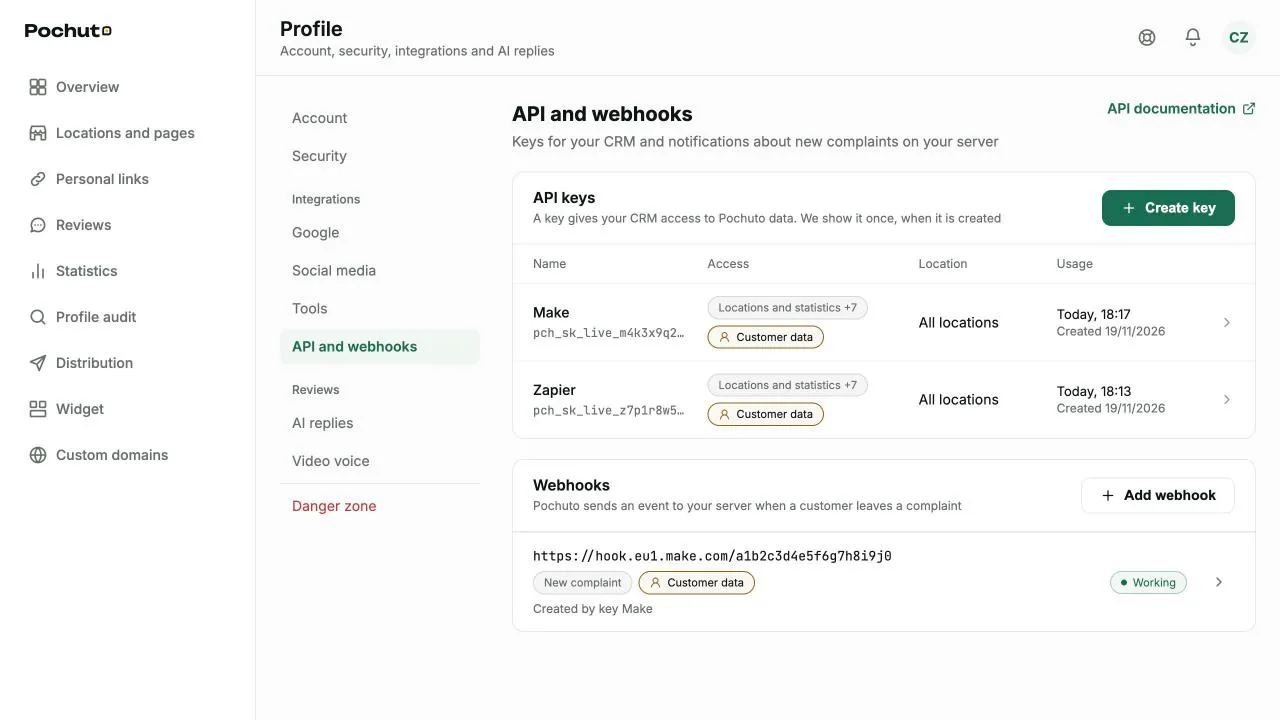
- In the dashboard open Profile → "API and webhooks", and in the "API keys" card press "Create key"
- Give the key a name you will recognize, for example "Zapier" or "Make"
- Tick the access it needs, using the table below. If you like, limit the key to one location, and the platform will only see that one
- Copy the key and paste it into the Pochuto connection in Zapier or Make
The key is shown only once, right after you create it. If you did not copy it, create a new one and revoke the old one. Do not send the key in chat or email and do not publish it: whoever has the key has the rights you gave it
A separate key for each platform lets you revoke one without stopping the other. More about keys is in the API and webhooks section
Connecting in Zapier and Make
The Pochuto apps in Zapier and Make are available by invitation. Open the invitation, pick Pochuto in your Zap or scenario, create a connection and paste the key. The connection is checked right away: with a wrong or revoked key it is not saved and shows the reason
Open Pochuto in ZapierOpen Pochuto in MakeIf an invitation does not open, write to hello@pochuto.com and we will send it manually. Step names in Zapier and Make are in English, as in the apps themselves, so they are written that way below
The key must have the "Locations and statistics" permission (locations:read). It is used to check the key and to fill the lists of locations, pages and employees. Without it the connection is not saved
Actions
Pochuto performs an action when your Zap or scenario reaches it
- Create Personal Link creates a personal link for a customer. You pick the location and page from a list. The external id field is required: enter the order or deal number from your CRM. If the step runs twice with the same id within a day, you still get one link, no duplicate
- Find Personal Link looks a link up by external id and returns its address and status. If there is no link, the step finishes with no result instead of an error, so the next step can create it
- Update Complaint Status changes the status of a customer complaint, and the change shows in the dashboard
- Reply to Google Review publishes your reply to a Google review
Triggers
Triggers are instant: the event arrives from Pochuto right away, and the platform does not check for it on a schedule. The subscription to an event is created when you turn a Zap or scenario on and is deleted when you turn it off or delete it
- New Complaint fires when a customer leaves a complaint
- Personal Link Used fires when a customer uses a single-use personal link. Reusable links do not fire it: turn on "Single use" in Create Personal Link
- New Google Review fires when a new Google review appears
Subscriptions created by Zapier or Make are visible in the dashboard, in the webhooks card, marked "Created by key" with the key name. You can delete them there too
Which permissions are needed
Permission names are as shown in the dashboard, with their codes in brackets. The platform shows the code if a permission is missing
| Step | Key permissions |
|---|---|
| Connection and lists | Locations and statistics (locations:read) |
| Create Personal Link | Links: create (review_requests:write) |
| Find Personal Link | Links: view (review_requests:read) |
| Update Complaint Status | Complaints: change status (feedback:write) |
| Reply to Google Review | Google reviews: reply (google_reviews:reply) |
| New Complaint | Webhook subscriptions (webhooks:manage) and Complaints: view (feedback:read) |
| Personal Link Used | Webhook subscriptions (webhooks:manage) and Links: view (review_requests:read) |
| New Google Review | Webhook subscriptions (webhooks:manage) and Google reviews: view (google_reviews:read) |
If a permission is missing, the step fails with the code of the permission it needs instead of silently doing nothing. Add the permission in the key settings and run the step again
Customer name and phone
A subscription created by Zapier or Make does not pass customer contacts: the event arrives without a name and phone. To get them into your Zap or scenario, open that subscription in the dashboard and turn on passing the name and phone, with confirmation. The decision is always yours, and the platform cannot make it for you
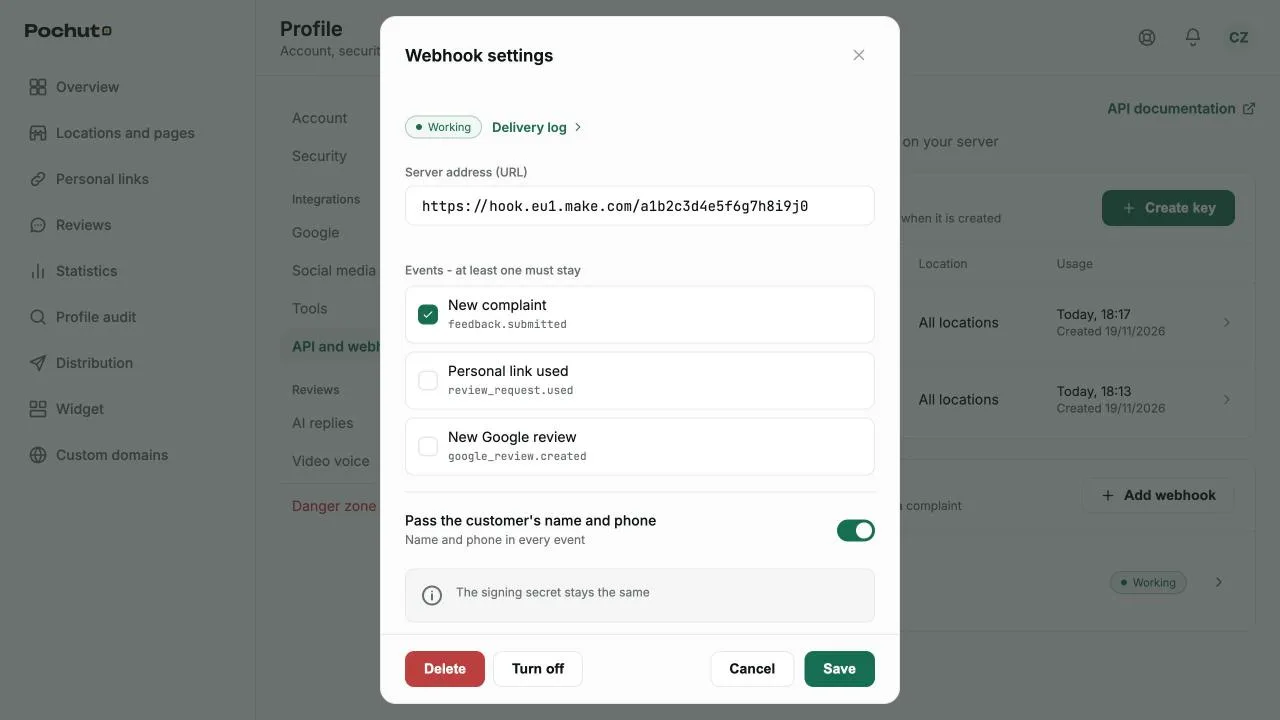
The name and phone permission on the API key itself does not apply to these subscriptions: it only covers requests where the platform reads data on its own. If you turn the Zap or scenario off and on again, the platform creates a new subscription, and you need to turn on passing contacts once more
Trial period and limits
On the trial period the integration works in full, with limits for testing
- 5 writes per minute (creating a link, changing a status, replying to a review). If you hit it, Zapier repeats the step on its own after a short pause. In Make, add a Break error handler with automatic retry to the Pochuto steps, otherwise the scenario stops. Either way, no extra links appear
- 100 webhook deliveries per day. An event over the limit does not start the Zap or scenario, and in the delivery log it is marked "Plan limit"
- Up to 10 subscriptions created by keys, and up to 50 on a paid plan. A turned-off Zap frees its place
After you pay for Business the trial limits go away. If Business ends, keys first work read-only and then stop working. Details are in the API and webhooks section
Frequently asked questions
- Do I need a developer?
- No. You create a key in the dashboard, paste it into the connection and build a Zap or scenario with the mouse. A developer is only needed for your own service that is not among the apps in Zapier or Make
- My Zap does not start even though there is a complaint. Why?
- Check three things: whether the Zap is on, whether the key can view complaints together with webhook subscriptions, and whether the 100 deliveries per day are used up on the trial. Deliveries are visible in the webhook log in the dashboard
- Why is there no customer name in the event?
- Customer contacts are passed only after your separate confirmation in the subscription. Without it the event arrives without a name and phone
- What if the key got into the wrong hands?
- Revoke it in the dashboard: it stops working at once and its subscriptions disappear. Create a new key and paste it into the connection