Locations: business sites, the Google profile and notifications
A location is one physical site of your business: a cafe, a branch, a treatment room. One account can hold as many as you like, and each has its own review pages, its own QR code and its own notification chat
What a location is
A location is one site of a business: a cafe, a branch of a chain, a separate practitioner's room. Every location has a name, an address and (optionally) a linked Google profile - that is where the link that customers with a high rating are sent to comes from
A location shows nothing to customers by itself - it is a container for review pages. One location can have one page or several: for example, a separate one for the dining room and one for delivery, so you can see where a review came from
All locations live on the "Locations and pages" screen. A card shows the name, the address, the "Active" status (when there is an active page) and a Google chip - it appears only on a location linked to a Google profile. If there is no address, the card says so: "No address provided" (for a location from a profile with no physical address - "No physical address"). Below it is the list of this location's pages: each row has its own status, the number of views over 30 days and a button to copy the link. The QR code (PNG or SVG) is in the "⋮" menu of the same row, along with deactivating and deleting the page
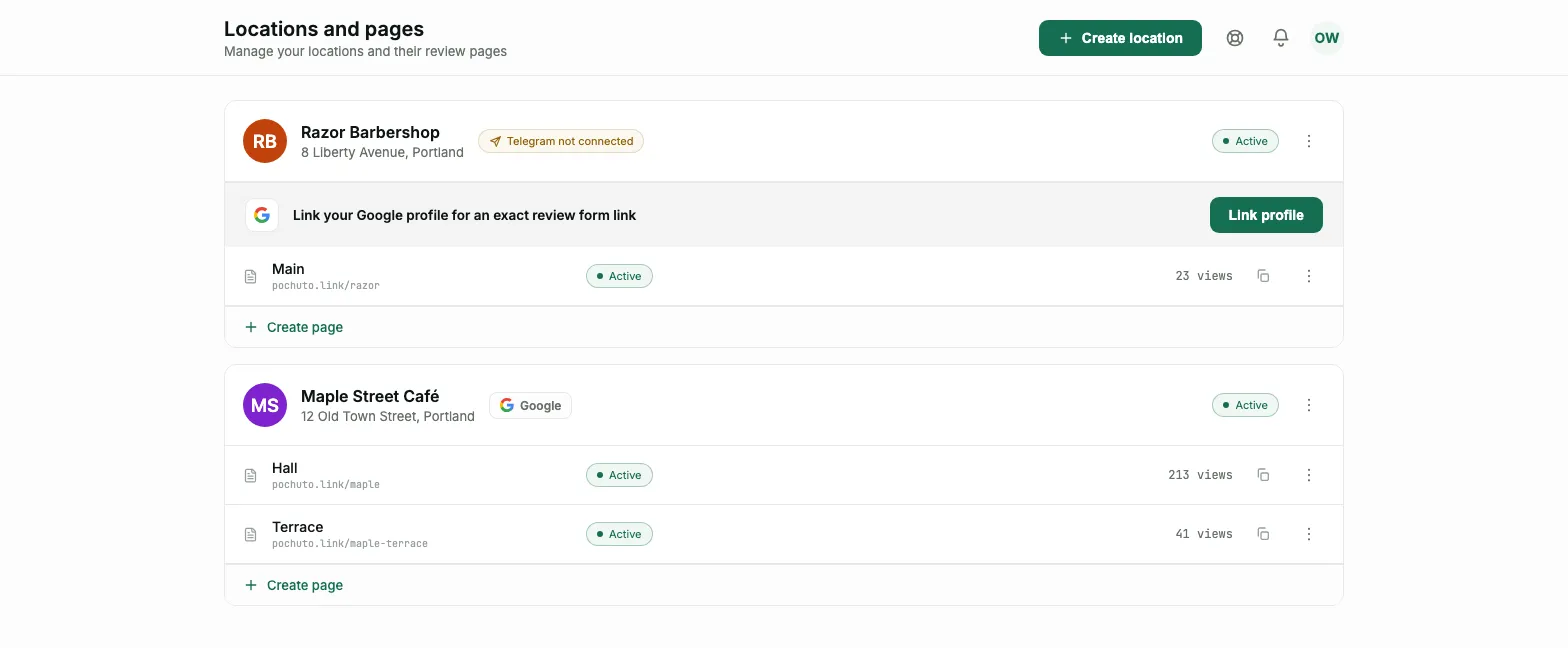
If something is missing, the card says so directly: "No review link" or "Telegram not connected", and on a location without a Google profile a strip appears: "Link your Google profile for an exact review form link" with a "Link profile" button. An empty location gets a "Create page" strip at the bottom of the card. These are hints, not errors, and each can be dealt with in one step from the same card
Several locations in one account
A chain with several sites adds each one as a separate location in the same account: management, the subscription and the overall statistics stay shared, while each site has its own link, QR code and notification chat
A single business with different lines of work does the same - for example, a salon and a separate treatment room at another address: each site has its own Google profile, so the locations should be separate too
The first location is included in the subscription. Each further one is a paid add-on to the subscription: $19/month on Start and on Business. The dashboard shows the cost before you create the location, and it is added to the next payment - there is no separate charge right away. An extra location requires an active subscription and a linked card
How to add a location
The "Create location" button opens the "Add location" screen. If Google Business Profile is connected to the dashboard, at the top is the list of locations from the profile: tick one or several, and the page, QR code and review link are created automatically. The address and review link are pulled from Google, so you don't need to type them. More about connecting a profile in Google Business Profile
Your location isn't in the profile, or no profile is connected? Below there is a Google search by name, and if the location isn't there either, you can add it by hand: you enter the name, the address (optional) and the review link yourself. The dashboard checks that the link really looks like a "Write a review" link from Google Maps. A location you found or entered becomes a row in the list right away and is counted in the summary
On the right is the summary: how many new locations there will be, how many existing ones will be linked to the profile and how many locations are already used on your plan. If part of the selection goes over your plan, the summary names the extra charge and the confirm button shows it: slots are added right away, and payment comes with the next charge. For locations from the profile this works on an all-or-nothing basis: if the plan can't fit your selection, none of them is created, and the dashboard tells you how many more you can add. After success the dashboard takes you back to the list of locations
Everything you entered can be changed later - the name by renaming, the link from the card menu, the rest in the page editor. A mistake at this step is not irreversible
The Google profile in a location
A location added by hand can be linked to a Google profile later: its card has a "Link your Google profile for an exact review form link" strip with a "Link profile" button. The dashboard finds the location in your profile or offers to choose it from a list
Linking changes nothing for customers: the page, QR code and statistics stay as they were, and no plan slot is used. The only change is that the review link now comes from the profile - the dialog shows what it was and what it will be
The review link
This is the direct "Write a review" link from Google Maps - it is where the button on all pages of this location leads. It belongs to the location, not to a page: all pages of one site lead to the same profile
Without a link a page can't become active. The dashboard won't let you save an active page and will ask you to enter the link - without it a high rating has nowhere to go
You can change the link at any time: the location card menu → "Link". You will need this if the Google profile was recreated or the business moved to a new address. For a location linked to a Google profile, the link comes from the profile
The location's Telegram chat
Notifications about new reviews arrive in Telegram, and a chat is connected separately for each location - so a review from one site doesn't get lost among the messages of another. Card menu → "Telegram chat"
- Group - a regular team chat, the bot is added in one click
- Channel - one-way posts; comments under them are turned on inside Telegram
If you want a reaction to a message in the chat to mark the review as processed in the dashboard, make the bot an administrator of the group: one permission is enough - "Change Group Info"
A chat already connected to another location can be reused - the dashboard offers it in a list, so you don't have to create a new one
Renaming and statistics
Card menu → "Rename" changes the location's name. The new name appears everywhere in the dashboard - in lists, statistics and notifications; it doesn't affect what the customer sees, because the business name on the page is set in the page editor
Card menu → "Statistics" opens the numbers for this site only: views, ratings and reviews separately from the other locations. The totals for the whole account stay on the Overview
The location's logo
A location has no logo of its own: the logo belongs to the review page, not to the site. You upload it in the page editor, and it is shown at the top of the page, in the browser tab and (optionally) on the OG card
If a location has several pages, the logo is uploaded for each one separately - this lets you, for example, have a shared brand for the dining room and a separate one for delivery
Deleting a location
You can delete a location from its card menu. The dashboard asks for confirmation: deletion is irreversible and removes the location together with all its data - reviews, requests and statistics. If the location has pages, the dialog names how many - they are deleted together with the location
The QR codes and page links of such a location stop working - stickers already printed with them will have to be replaced
If the location occupied a paid extra slot, the deletion dialog has a "Stop paying for this slot from the next charge" checkbox. It doesn't change the month you have already paid for - it only removes the slot from the next payment. It is unchecked by default, and it appears only when the location occupies a purchased slot
FAQ
- How much does a second location cost?
- The dashboard shows the price of an extra location on the second step of creation - it is added to the next subscription payment, and there is no separate charge
- Can I change the review link later?
- Yes, at any time through the location card menu - for example, if the Google profile was updated or the business moved
- What happens to the statistics after a location is deleted?
- Deletion is irreversible - the location and all the data tied to it, including the statistics, are deleted along with it
- Do I need a separate location for a second room at the same address?
- No, if they share a Google profile - two pages in one location are enough, and you will still see where a review came from
- Can I get notifications from all locations in one chat?
- Yes - when connecting, the dashboard offers chats already in use as a list, so one chat can be linked to several locations