Browser extension: the dashboard at hand
The extension does what the dashboard does, but from the browser toolbar: a named link for a customer in three fields, a list of tags and QR codes - without opening a separate tab
Why you need it
There is one very concrete scenario: a customer is standing in front of you, and the link has to be handed over now, not after you open the dashboard, find the right page and fill in a form
- A personal link in three fields - right in the extension popup
- A list of links and QR tags - in the browser's side panel
- Logging out of the extension separately from the dashboard - the sessions are not linked
The extension changes nothing in the account settings, cannot see your password and does not read other sites - this is stated directly on the access confirmation screen
Which browsers are supported
Profile → the "Tools" section → the "Browser extension" card → the browser selector and the "Install extension" button. The dashboard guesses your browser itself, but you can change the choice by hand
| Browser | Where it is installed from |
|---|---|
| Chrome | Chrome Web Store, in one click |
| Microsoft Edge | Edge Add-ons - Edge's own store, in one click |
| Brave | Chrome Web Store, with no extra setup |
| Opera | Chrome Web Store, but through the "Install Chrome Extensions" add-on |
Firefox and Safari are not supported. This is not temporary: the extension is built for Chromium, and these browsers do not have it. In Yandex Browser it will technically run, but we do not point people there and do not keep a separate item for it in the selector
Opera is the only case with an extra step: the browser itself is Chromium-based, but there is no store of its own for us, so you first install a bridge add-on and then the extension through it
How to connect an account
After installing, the extension knows nothing about you yet. Press "Connect account" - a pochuto.com tab opens where you confirm access. Until you press "Confirm", the extension has received no data
The confirmation screen shows the id of the extension itself - it is worth checking it against what you just installed: this protects against someone else's copy asking for access to your account
If the tab did not open, check whether the browser blocks pop-ups. If you closed the tab before confirming, the extension says so: "The tab was closed before you confirmed access. The extension received no data"
What is inside
The extension has two windows. The popup is small and opens with a click on the icon: choosing a page, the customer name, phone, employee and a single-use link switch. After creating, the ready link is right there, together with the QR code, the download PNG and SVG buttons and a "Send" button: Viber, Telegram, SMS or copying the message text. The text is the same for all channels, and you send it yourself - Pochuto sends nothing
The side panel is wider, with three tabs: "Links" (everything already issued), "Tags" (QR and NFC) and "Account"
The "Account" tab holds the default page, a location filter (the lists in the popup and the panel show only the selected ones), the extension theme and a quick access button on your site - it has its own section below
Logging out of the extension does not log you out of the dashboard: the window warns about it - "You will log out of the extension only - the session in the pochuto.com dashboard tab stays active"
The quick access button on your site
This is a round Pochuto button on top of your own site: one click opens the extension's side panel right where you are. It is handy for an administrator who sits on the business website all day anyway - no need to look for the extension icon in the browser toolbar or switch tabs
Only you see the button. It is part of your extension in your browser, not code inserted into the site: site visitors do not see it, and nothing needs to change on the site itself
How to turn it on
- Open the extension's side panel → the "Account" tab → the "Quick access on a site" block
- Turn on the switch in the block header - the fields under it appear only after that
- In the "Site domain" field enter the address without a protocol or path - for example example.com
- Choose the button size: S, M or L
- Press "Save" - the browser asks for permission to access this domain, and you need to allow it
The button does not appear right away but after the site page is reloaded. This is not a failure: tabs opened before you saved the settings do not know about the button yet - refresh the page (F5) and it will be in place. On all pages opened after that, it appears by itself
If you answer "Block" to the permission request, the extension says so: "Pochuto did not get permission for this domain - allow access and try again". Without the browser's permission the button will not work - allow it and save again
Which domain to enter
One entry - the main domain - is enough. The button appears on it and on all its subdomains, on both http and https
| You entered | The button will be on |
|---|---|
| example.com | example.com, www.example.com, shop.example.com and the rest of the subdomains |
| www.example.com | the same - the extension removes the www prefix by itself |
| shop.example.com | only shop.example.com and its own subdomains |
So enter a subdomain only when you deliberately do not want the button on the rest of the site. In the usual case, enter the main domain
How it behaves on the page
- Size - S, M or L: 40, 56 or 72 pixels. Pick the one that gets in the way of your site the least
- You can drag the button with the mouse to any corner - by default it sits at the bottom right
- The position is remembered in fractions of the screen, not in pixels: after the window is resized or you move to a laptop with a smaller screen, the button stays in place instead of drifting off the edge
- A short twitch does not count as dragging - if you moved the cursor a couple of pixels, it is still a click, and the panel opens
- The site's styles do not affect the button - it is isolated from the page, so someone else's CSS will not move or recolor it
On hover the button is labeled "Pochuto - quick access" - so that a month later you do not wonder what that little circle on your own site is
How to turn it off or change the domain
In the same settings block: change the domain and save - the button moves to the new site and disappears from the old one. The feature is turned off with the same switch you used to turn it on
The browser's permission for the domain stays granted - both when you turn the feature off and when you change the domain to another one. The button disappears right away because the extension removes its script from the pages, but you will still see the permission itself in the browser's list of extensions. This is on purpose: the button is turned on and off far more often than the domain is changed, and asking for permission anew each time would be annoying. You can revoke the permission in the extension settings in the browser itself
Changing the domain or turning the feature off likewise reaches tabs that are already open only after the page is refreshed - the reason is the same as when turning it on
When a personal link is unavailable
If the account has no active review page, there is nothing to attach a personal link to - the extension suggests creating a page in the dashboard first
Managing access
All connected copies are shown in Profile, in the "Tools" section, in the same card: the browser, the platform, when it was connected and when it was last active. In the "⋮" menu next to each copy there are "Rename" (a name helps tell copies apart, for example by device name) and "Revoke"
Several connections at once are normal, not an error: different browsers and profiles are counted separately, and an account holds up to 20 entries. A work computer, a home one and an administrator's laptop can live side by side
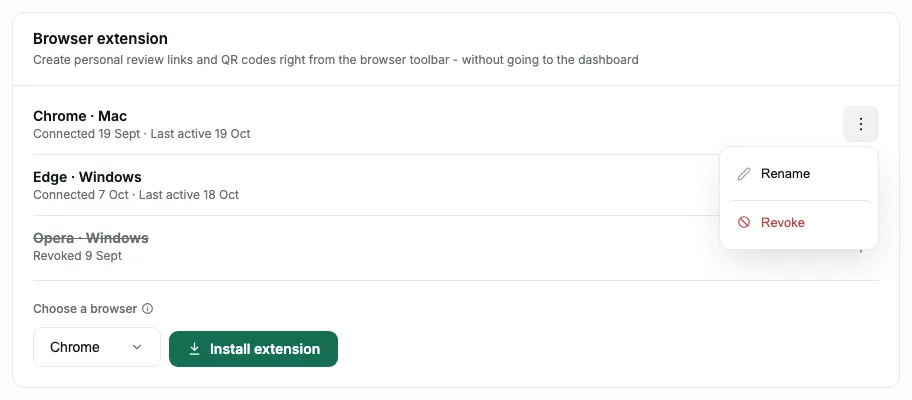
Revoking takes the extension's access to the account away but deletes nothing: the links and tags you created stay in place, and you can connect the browser again at any time through the extension popup
Frequently asked questions
- Is there an extension for Firefox or Safari?
- No. The extension is built for Chromium, so it works in Chrome, Edge, Brave and Opera, and Firefox and Safari do not have it
- Does the extension see my password?
- No. It does not see your password, does not change account settings and does not read other sites - the list of permissions is shown on the confirmation screen before you grant them
- How many browsers can I connect?
- Up to twenty per account. Different browsers and profiles are counted separately, and several active connections are a normal state
- What happens if I log out of the extension?
- Only the extension logs out - the session in the dashboard stays active. Links and tags do not go anywhere, and you can connect the account again