Profile and security: account data and access
The profile is everything about you rather than your locations: the plan and dashboard theme, login details and password, the Google connection, the extension, the Telegram bot, analytics IDs, AI replies and the video voice. The screen is split into sections, and each has its own address
Profile sections
The "Profile" screen is split into sections. On a computer the section menu is on the left, and in it, in order: Account, Security, Google, Social media, Tools, AI replies, Video voice (only when video voiceover is available), and after a divider a red item, Danger zone. Above "Google" there is a group caption "Integrations" (which also covers "Social media"), and above "AI replies" - "Reviews". Each section has its own address: /profile/account, /profile/security, /profile/google, /profile/social, /profile/tools, /profile/ai-replies, /profile/video and /profile/danger, so you can bookmark the place you need
The bare /profile on a computer opens Account. There is no separate notifications section in the profile: where reviews arrive is set for each location - in the section about Telegram
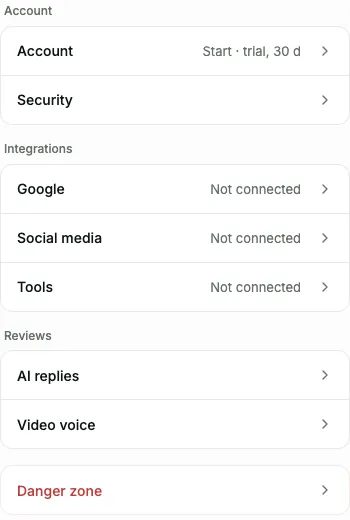
On a phone /profile is a list of sections, where some rows carry a status: the plan and its state next to "Account", "Connected" or "Not connected" next to "Google", the number of chats or "Not connected" next to "Tools", "On" or "Off" next to "AI replies". A section opens as a separate screen, and you get back to the list with the "Profile" arrow button or the "back" gesture. On a screen 900 to 992 px wide there is no list of sections: the menu collapses into a "Section" switch above the content (it shows the group captions), and the bare /profile opens "Account" there
When Google returns you to the dashboard, the profile opens the right section by itself: after linking login with Google - Security, after connecting Google Business Profile - Google. The toast with the result is shown there too, and on a phone you go straight to the section screen, not the list
Account: plan, theme and language
The "Account" section opens first. It has two cards: first "Account" - the current plan and the subscription state, then personal data
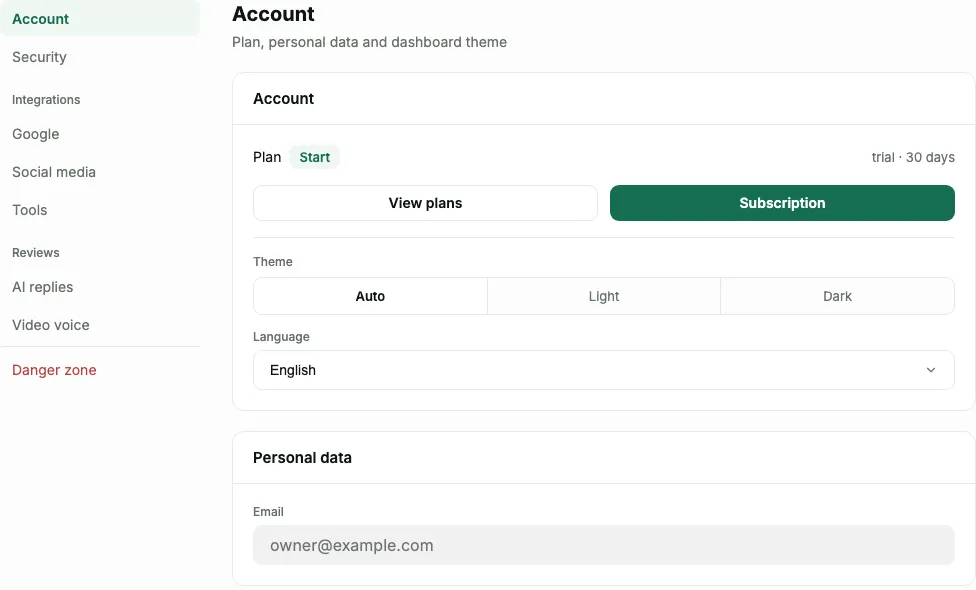
The "Account" card has the plan name, the subscription state and buttons. "View plans" leads to the plans screen. Next to it is "Subscription" - it leads to a separate screen with the amount, the card and the payment history, and appears only when there is something to manage there: the subscription is active, a trial is running, a payment failed or a card is linked to the account (even if the subscription was canceled or ended). Otherwise one button is left - "View plans"
The theme is here too - "Auto", "Light" or "Dark". "Auto" follows the system setting, so the dashboard goes dark together with the rest of your apps in the evening. Under the theme is the "Language" choice for the dashboard interface: "Українська" or "English". The page reloads after you switch. Until you link a card or pay for the first time, the language also decides the currency of prices in the dashboard (English - US dollars, Ukrainian - hryvnia); after the first payment or card link the currency stays fixed and no longer changes with the language
Do not confuse this with the review page language: it is set separately for each page and translates what the customer sees
Personal data
The second card of the "Account" section. It has one field - email. The account has no owner name, so there is no "Save" button here either
You can correct the email here until it is confirmed: this way an owner who made a mistake in the address at registration is not left without the email. After the change, the email with a link goes to the new address - the dashboard says so: "Email changed, a message was sent to the new address". A confirmed email is locked from editing in the profile
If "Email not confirmed" shows under the field, a "Send email" button appears next to it. You can ask for emails no more often than once every few minutes - on a repeat click the dashboard answers "An email was just sent" and suggests checking your spam folder
Password and login with Google
The "Security" card shows both ways to log in: the password on top, Google below it. The password change form has exactly two fields - the current password and the new one. There is no confirmation field on purpose: typing the password twice does not catch an error that logging in itself would not catch
The new password must differ from the current one and not be too simple - the dashboard says so: "The password is too simple - add digits or symbols". The number of attempts per minute is limited
If you log in with Google, you have no password yet - the dashboard says so directly: "You log in with Google, no password is set yet". You can add one with the "Send link" button: the password is set not here but on the page from the email. Access to your email, not just an open dashboard tab, is the proof that you are the owner
After that both logins will work - with Google and with the password
Link Google
If you registered with an email and password, Google can be added as a second way to log in. Under the password in the "Security" card there is a hint with your email and a "Link Google" button. The dashboard goes to the Google page - choose an account, and you are returned to the profile. After that a "Linked" mark appears next to it, with the hint "One-click login via" your email
The Google account must use the same email as the dashboard. If you choose a different one, the dashboard answers "Google has a different email" and names which account is needed. Choose the Google account for the dashboard's email
After linking, an email about the new way to log in arrives at the dashboard's email. If you did not link anything, change your password and write to support
If linking failed, the dashboard explains the reason:
- "This Google account is already linked to another Pochuto dashboard" - one Google account can log in to only one dashboard. This happens if this Google account is already linked to another dashboard of yours, for example one where the email was later changed. Log in to that dashboard with Google or write to support
- "Another Google account is already linked to the dashboard" - a second Google account cannot be added to one dashboard
- "The email in this Google account is not verified" - verify it in Google itself and try again
Google cannot be unlinked in the dashboard. For an owner without a password, Google is the only way to log in, and such a button could lock them out of the dashboard. If Google needs to be removed, write to support
Google: Business Profile and reviews
The "Google" section has two cards about the Google profile your business is linked to. "Google Business Profile" shows how many business accounts were found, tells you if access is lost and lets you connect again or disconnect. "Google reviews" is the import of reviews from the profile with delivery to Telegram. Details are in the section on Google Business Profile
This is not login to the dashboard with Google: that is added in the "Security" section and has nothing to do with connecting a business profile
Tools: the extension and the Telegram bot
The "Tools" section gathers what helps you issue personal links faster, and the analytics settings. The order of the cards: the browser extension, the Telegram bot, analytics
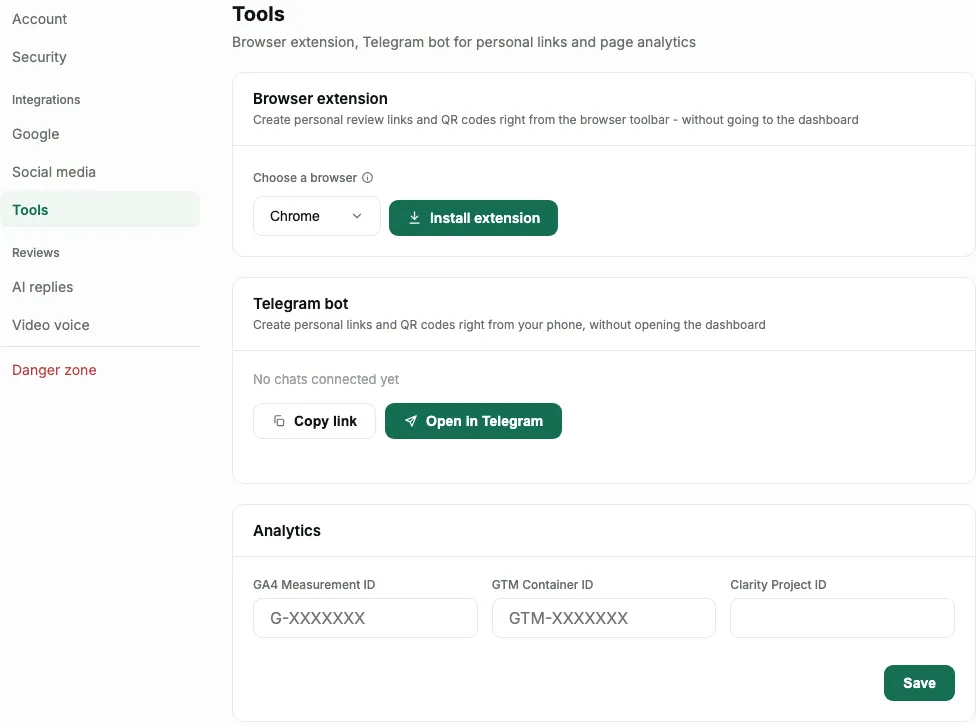
The browser extension is a list of connected copies, with a menu for each to rename the copy or revoke access, and an install block. Details are in the section on the extension
The Telegram bot creates personal links and QR codes right from your phone. The card gives a single-use link with a lifetime: the "Open in Telegram" button opens the private chat right away, and "Copy link" helps you forward it to an administrator. The code is issued on a click on either of these two buttons: if the previous one has already expired, the next click issues a new one. Connected chats stay in the card, and each can be disconnected
This is not the same bot as the chat for review notifications. That one is a group or channel linked to a location, where reviews arrive. This one is a private chat from which you issue links. They are set up separately and do not replace each other
Analytics
The last card of the "Tools" section. It stores the IDs of external counters - Google Analytics (format G-XXXXXXX), Google Tag Manager (GTM-XXXXXXX) and Microsoft Clarity
IDs are entered once for the whole account and turned on page by page - in the editor of a specific page. A service without an ID saved here simply does not appear in the editor's list: details are in the section on pages
AI replies
The "AI replies" section comes last before the "Danger zone". Its settings apply to all locations in the account. Here are the active preset and your own presets, the "Address the author by name" switch, the "Auto-replies" card (the main switch, the switch for negative reviews and the publishing delay) and the preset test reply. Under the heading the dashboard states the limit: "Limit: 150 AI generations per month for each location"
AI replies are available on the Business plan. Without it, a notice "AI replies are available on the "Business" plan" stands in place of the settings. Everything that is set in the section is in the document on AI replies
Video voice
The "Video voice" section (/profile/video) is in the menu after "AI replies", before the "Danger zone". It appears only when video voiceover is available in the dashboard. Here you choose the voice that reads the review text in the video: the "Voiceover voice" list has ready-made voices (each with a "Listen" button) and a "My voice" item for recording or uploading a sample of your own voice. The choice is saved at once, and under the list you see what is left: "This month you have ... of ... left"
Below is the "Reviews in other languages" card with a choice of "Original" or "Translation" for reviews that Google translated into Ukrainian. Voiceover is available on the Business plan: on Start and during a trial a notice "Voiceover is available on the Business plan" with a "Switch to Business" button stands in place of the settings. How to voice a video, the limits and your own voice are in the document on review videos
Danger zone
The last menu section, red, after a divider. It has two buttons: "Log out" - logging out with no confirmation - and "Delete account". What exactly stops after deletion and what can be restored is in the section on deleting an account
What this screen does not have
So you do not look in vain:
- A list of active sessions and a button to end a login on another device
- Two-factor authentication
- Several users per account - there are no roles or team invitations yet
What can really be revoked one by one is the extension and the bot chats, each in its own card of the "Tools" section. If you are worried about someone else's access, start with those, and then change your password
Frequently asked questions
- I log in with Google - how do I add a password?
- In the profile, in the "Security" section, press "Send link". The password is set on the page from the email, after which both ways to log in will work
- How do I add login with Google if I log in with a password?
- In the profile, in the "Security" section, press "Link Google" and choose the Google account for the same email as the dashboard. After that both ways to log in will work
- Why does the dashboard say "Google has a different email"?
- The chosen Google account is registered to a different address. Only a Google account for the dashboard's email can be linked - choose the Google account for the dashboard's email
- Why does the email to confirm my address not arrive?
- Check your spam folder. You can resend it in a few minutes - the dashboard will not allow it sooner, so the email is not duplicated
- Where do I end a session on another device?
- There is no such list in the dashboard. You can revoke access for the extension and the bot chat, each in its own card of the "Tools" section, and to protect the dashboard login, change the password
- Can I give an employee access?
- There are no separate users or roles yet. An employee appears only as a name in a personal link, and the account has a single dashboard login
- Where do I set up AI replies to reviews?
- In the profile, in the "AI replies" section: presets, auto-replies and "Address the author by name". The settings are shared by all locations in the account. Details are in the document on AI replies
- Where in the profile are the theme, the Telegram bot and analytics?
- The theme is in the "Account" section, under the plan buttons. The Telegram bot, the extension and the analytics IDs are in the "Tools" section. Connecting Google Business Profile is in the "Google" section
- Where is the "Subscription" button?
- In the "Account" section, in the plan card, next to "View plans". It appears only when there is something to manage: the subscription is active, a trial is running, a payment failed or a card is linked (even if the subscription was canceled). If none of these apply, one button is left - "View plans"
- Can I change the dashboard language?
- Yes. In the "Account" section, under the theme, the "Language" choice offers "Українська" and "English". The language of the review page is a separate setting of each page
Social media: publishing review videos
The "Social media" section has the cards "YouTube", "TikTok" and "Instagram and Facebook" (Instagram is connected in two ways: through a Facebook page or Instagram alone, without a page). Here you connect the accounts where Pochuto publishes review videos, see the status of each connection ("Connected", "Access lost") and disconnect it. What each network needs and how to publish is in the section on review videos
This is not login to the dashboard and not Google Business Profile: connecting YouTube does not depend on the "Security" and "Google" sections, even if the Google account is the same