Reviews widget: how to show Google reviews on your website
The widget shows fresh Google reviews from your Pochuto dashboard on your website. You set it up in the dashboard, copy two lines of code and paste them into a page once - after that the reviews update on their own
What the widget shows and on which plans
The widget is a block of reviews that you paste into your website. The header has the rating and the number of reviews from Google and a link to all reviews; below are review cards in a carousel: on a phone one card and a swipe, on a wide block several cards and arrows. Each card has the author's name, the rating, the date and the review text, unedited. There is no auto-scroll
It shows only Google reviews that Pochuto has already imported. Complaints left in the Pochuto form never reach the widget
The widget works on the Start and Business plans, and during the trial. The difference is this
- Start - one widget per account, with the reviews of the locations you chose. You can change the set of locations, the minimum rating, the number of reviews, the theme, the header and button switches, and hide reviews without text. At the bottom of the widget there is a "Powered by Pochuto" line with a link
- Business - the same, plus several widgets with their own settings and code (for example, a general one and a separate one for each branch), with a set of locations for each. There is no Pochuto line. There can be at most as many widgets as locations plus one
When there are no suitable reviews or the Pochuto server doesn't respond, the widget draws nothing - no frame and no error message. The rest of your website's page loads as usual
Where the "Widget" screen is in the dashboard
In the dashboard's left menu open the "Widget" item. At the top is the list of your widgets, under it the "What to show" block with the settings of the chosen widget, next to it "Code for your website", and below "Preview": this is how the widget will look on your website in the theme you chose
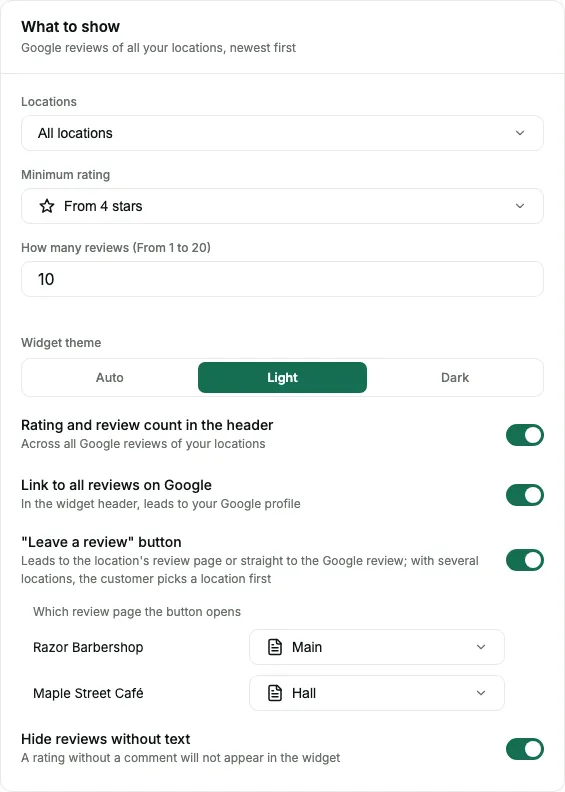
What each setting means
- Locations - which locations to take reviews from. It is on both plans: in the widget you can tick one or several locations. The same set also determines the link to all reviews and the "Leave a review" button. If no location is chosen, the widget stays in the dashboard but isn't shown on the website until you choose locations
- Minimum rating - from 1 to 5 stars. The default is from 4: the widget shows only reviews with this rating or higher
- How many reviews - from 1 to 20, 10 by default. The newest come first
- Widget theme - "Auto", "Light" or "Dark", on both plans. A new widget starts with "Light". "Auto" adapts the palette to the visitor's device system theme, "Light" and "Dark" fix it regardless of the device theme. Widgets created earlier keep "Auto"
- Rating and review count in the header - shows the overall Google rating. It is calculated across all reviews of the widget's locations, not just those that passed the filter. If there are several locations, the rating is averaged taking the number of reviews into account
- Link to all reviews on Google - a link in the header that leads across the widget's locations: one location - straight to its reviews in Google, several - the visitor first chooses the location
- The "Leave a review" button - opens your Pochuto review page in a new tab, and your website stays open. It works for the widget's locations: if there are several, a location choice opens first. If a location has no published review page, you decide what to do with it (the next item). If there are no links at all, there is no button
- What the button opens in each location - for a location with published review pages you can choose one of them, and the first one created is the default. For a location without a published Pochuto page there are two options: "Don't show" - the location doesn't make it into the button, or "Google review" - the button leads straight to the review form in Google
- Hide reviews without text - on both plans, on by default in a new widget. A review with only a rating and no comment then won't make it into the widget
While the minimum rating is above 1, the dashboard reminds you: what to show on your own website is your decision and your responsibility to customers. Decide consciously whether to show only the best reviews, and if needed review Google's rules on reviews
Choose a theme that suits your website's background. A fixed theme doesn't depend on the page the widget sits on: a dark palette on a light background (and the other way round) reads poorly. If your website's background changes with the device theme, leave "Auto"
Settings are saved automatically, and in the "Preview" the theme changes immediately, even before saving. With the "Auto" theme the preview shows your dashboard's theme, while on the website the palette follows the visitor's system theme. After changes you don't need to change the code on your website, and the new theme appears on the website within 15 minutes
How to copy the embed code
In the "Code for your website" block press "Copy code". A confirmation "Code copied" appears. The clipboard will hold two lines: a container with your widget key and a script. They look like this
<div data-pochuto-widget="YOUR_KEY"></div>
<script src="https://pochuto.link/widget.js" async></script>
The key in the container is the public key of this particular widget; it matches neither your review page's address nor the location number. Copy the code from the dashboard rather than typing it by hand: every widget has its own key. If the account has several widgets, paste the code of the one chosen in the list
The script loads asynchronously (the async attribute). The widget is isolated from your website's styles, and your styles don't touch the widget. It doesn't add search engine markup (Schema.org) to the page
Where to paste the code
The logic is the same everywhere: you need the place on the page where the reviews block should be, and you paste both lines into it together, in one fragment. The block appears exactly where the container stands. Menu item names in website builders change from time to time, so below is the general order of actions, not exact paths
A plain HTML website
Open the page file and paste the code into the body of the page where the reviews should be: between other blocks, not in the service part of the page. Save the file and upload the website
WordPress
In the page editor add a block for arbitrary HTML code (it is called roughly "Custom HTML") and paste the code into it. If your theme works with sidebar or footer widgets, the same block type exists there too. Save the page and check it on the website, not just in the editor
Tilda
Add a block to the page that takes your own HTML code (look for it in the block library) and paste both lines into it. Then publish the page and check the widget on the published version
Wix
Add an element for embedding your own code or HTML to the page (look in the add menu among the embeddable elements) and paste the fragment into it. Such an element can be a frame of a set size, so check the result on the published website and, if needed, increase the element's height so the cards aren't cut off
Shopify
In the theme editor add a section or block for arbitrary code to the page (in many modern themes this is the Custom Liquid block) and paste the fragment. If your theme lacks such a block, you can add the code to the page template file by editing the theme code - that is an option for those who have already worked with themes
Google Sites
Add an element for embedding code or HTML and paste the fragment into it. Google Sites may display such code in a separate frame, so after publishing, open the page and make sure the widget appeared. If you can't see it, write to our support - we'll look together
Next.js
The script looks for containers once, at the moment it loads, so the container must already be on the page then. In Next.js, include the script with the built-in Script component: it loads it after the page becomes interactive. The example works in both the App Router and the Pages Router
import Script from "next/script"

export default function Reviews() {
  return (
    <>
      <div data-pochuto-widget="YOUR_KEY"></div>
      <Script src="https://pochuto.link/widget.js" strategy="lazyOnload" />
    </>
  )
}
Next.js includes the same Script once per visit. If a visitor reaches a page with the widget by navigating inside the website, without a reload, the widget may not appear, because the script won't run a second time. In that case include the script the way it is shown below for React
React, Vue, Svelte and other single-page apps
A script tag that a framework inserted into the markup isn't executed by the browser, so the two lines of code won't work just like that. Leave the container in the component's markup and add the script yourself once the component is shown, and remove it when the component disappears. Then the widget appears when navigating between pages too. An example for React
import { useEffect } from "react"

export function Reviews() {
  useEffect(() => {
    const script = document.createElement("script")
    script.src = "https://pochuto.link/widget.js"
    script.async = true
    document.body.appendChild(script)
    return () => script.remove()
  }, [])

  return <div data-pochuto-widget="YOUR_KEY"></div>
}
In Vue the same code goes into onMounted, in Svelte into onMount, in Angular into ngAfterViewInit. For websites where the code reaches the HTML as is (static generators, server-side templates), a plain paste of the two lines works, as for an HTML website
Some builders on free or limited plans don't allow pasting arbitrary code with scripts. This is a limit of the builder itself, not of the widget: check whether your plan allows pasting HTML code
Why changes don't show up right away
The widget is cached so as not to load our servers: changes on the website may appear with a delay of up to 15 minutes. This applies both to settings changes and to new Google reviews after Pochuto has imported them
So if you just changed the minimum rating and the website still shows the old version, wait a quarter of an hour and refresh the page. You don't need to change the code
FAQ
- Why is the widget on my website empty or not visible at all?
- The most common reasons: Google has no reviews yet that pass your filter (the minimum rating, hiding reviews without text); the code was pasted incompletely - both lines are needed; the website builder doesn't allow arbitrary code; the page isn't published yet. If there are no suitable reviews, the widget takes no space. Try lowering the minimum rating - the "Widget" screen shows this in the preview
- How soon do changes appear on the website?
- Settings changes and widget deletion - within 15 minutes at the latest. A new review gets into the widget after the import from Google (usually right away) plus the same 15 minutes of cache. A review deleted in Google disappears from the widget after the nightly reconciliation. You don't need to change the code on the website
- What happens to the widget when the subscription ends?
- For up to a day the widget may still show from saved data, and then it disappears from the website without errors or empty frames. After payment it returns on its own within 15 minutes at the latest, and you don't need to paste the code again
- Can I show only five-star reviews on my website?
- Technically yes - just set the minimum rating to 5. But selectively showing reviews on your own website is your decision and your responsibility to customers, so the dashboard reminds you while the minimum rating is above 1. Read Google's rules on reviews
- Can I change a review's text or hide an individual review?
- No. The widget shows the text the way the author wrote it in Google. Individual reviews can't be hidden manually - only by the minimum rating and by the absence of text
- Why is there a "Powered by Pochuto" line at the bottom of the widget on Start?
- It is a condition of the Start plan. On Business there is no such line
- Do I need to do anything if I add new reviews or delete a location?
- New reviews appear on their own. Deleting a location doesn't delete the widget: the location just drops out of its set, and the rest work as before. If one location is left, the links lead there directly, with no choice. If none is left, the widget stays in the dashboard but isn't shown on the website until you choose locations