Personal links: named review invitations
A personal link is the same as the QR code on a table, but addressed to a specific person: they see a greeting by name and, if you like, the signature of the employee who served them
What it is for
A QR code on a table is silent: it is the same for everyone and doesn't remember who scanned it. A personal link is the opposite: you send it to a specific customer by SMS or messenger after the visit, and the page greets them by name
The practical difference is in two things. First, addressing someone by name noticeably raises the chance that they get to the end. Second, the notification and the statistics show who exactly left a review and which employee served them - you can't learn that from a shared QR code
How to create a link
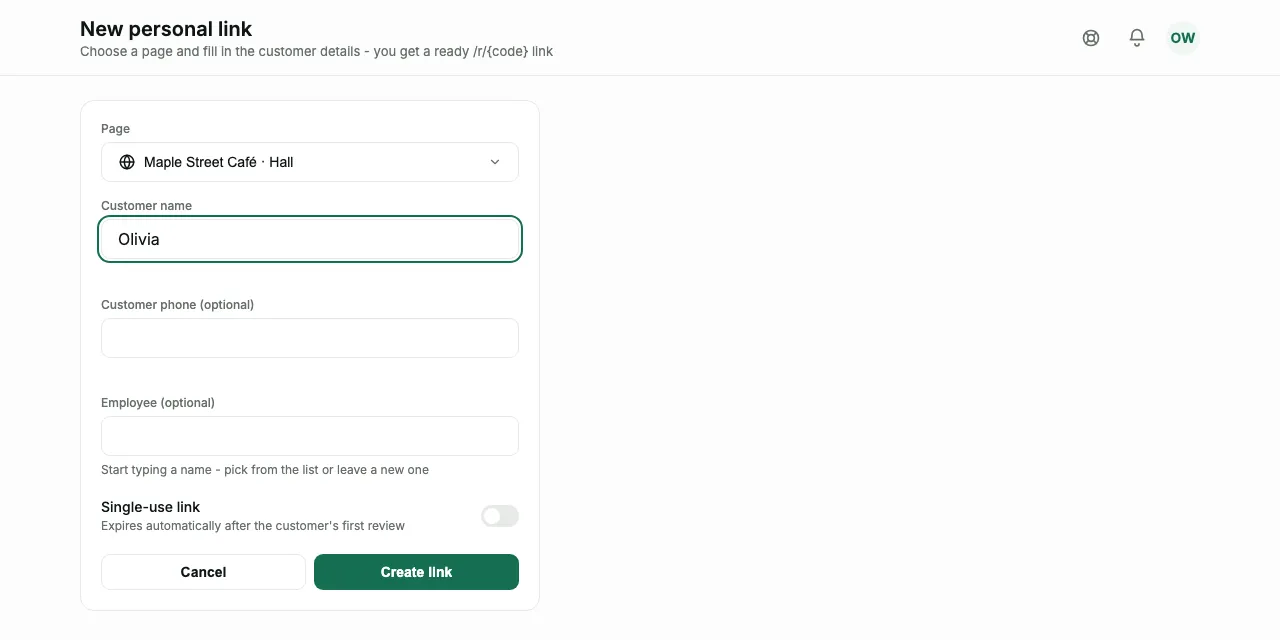
The "Personal links" section → the "Create link" button. A link always belongs to a specific review page, so the first step is choosing a page
- Customer name - required, it is the name that goes into the greeting
- Customer phone - optional; with it the "Send" button opens a chat with exactly this customer, with no searching through contacts, and you will also need it if you want to call back
- Employee - optional; start typing a name and choose from the list or enter a new one
If personalization is on for the chosen page, a "What the customer will see" block appears under the fields with the ready greeting and the employee's signature. If the block isn't there, personalization is off, and the customer will see a regular page without being addressed by name; you turn it on in the page editor, the "Personalization" section
Single-use links
The "Single-use link" switch with the caption "Expires automatically after the customer's first review" does exactly what it says: as soon as the customer has left a review, the link stops working
Why: so one invitation doesn't get passed along a chat and collect a dozen reviews from different people under one person's name. If you send links one by one and trust the recipient, you can leave the switch off
How to hand the link to the customer
Right after creating the link, the dashboard shows the ready link and a QR code for it. Show the QR code from your screen if the customer is next to you, or send the link in a messenger - for the customer it is the same path
It is more convenient to send with the "Send" button: it sits in the link row next to "Copy", and on the link screen it is the "SEND TO CUSTOMER" block above the copy button. There are four channels:
- Viber - if the link has the customer's phone, a chat with exactly them opens and the text is copied to the clipboard: all that's left is to paste it and send. Without a phone, Viber offers to choose who to forward the ready text to
- Telegram - with a phone, a chat with the customer opens and the text is already in the message field. Without a phone - a choice of chat
- SMS - opens the messages app with the ready text and the customer's number, if there is one
- Copy text - the same text to the clipboard, to paste into any other messenger
The text is the same for all channels and can't be edited: a short greeting and the link itself. The greeting's language is the review page's language: Ukrainian for a Ukrainian page, English ("Thanks for stopping by! How was your visit?") for an English one, and for Spanish and Polish pages English too. The menu shows the text in advance, in the "MESSAGE TEXT" block
Pochuto sends nothing on your behalf: the button only opens Viber, Telegram or SMS on your device, and the message goes from your own account. So on a computer Viber opens only if Viber Desktop is installed, and SMS only where there is a messages app
The customer will open the link from a messenger in the app's built-in browser - and Pochuto has to lead them out of it. This works, but the path is longer: how exactly this looks to the customer
Statuses and managing the list
- Active - the link works, the customer can leave a review
- Used - a single-use link through which a review has already been left
- Off - you deactivated it manually
Next to a row are the "Send" and "Copy" buttons, and in the menu you can edit the customer details, download the QR code (PNG or SVG), and deactivate or activate again. Deactivation doesn't erase the history: the dashboard warns directly that "The customer will no longer be able to leave a review via this link. The history is kept"
Above the list is a page selector with an "All pages" option: handy when you have several pages and need to see all of the account's links at once
Not only from the dashboard
The same links are created in two more ways, and both are useful when you're not at a computer:
- The Telegram bot - connected in the Profile (the "Tools" section), it creates links right in the chat
- The browser extension - a window with 3 fields, without opening the dashboard; the extension's side panel link list has the same "Send" button
FAQ
- How is a personal link better than a regular QR code?
- It is addressed to a specific person by name, and the review shows who exactly left it and which employee served them. A shared QR code doesn't know that
- What happens if the customer forwards the link to someone else?
- That person sees someone else's greeting and can leave a review. The single-use link switch protects against exactly this
- Can I change the customer's name after creating the link?
- Yes, a link can be edited - the code and the address itself don't change, so a link you already sent keeps working
- Does Pochuto send the message to the customer itself?
- No. The "Send" button only opens Viber, Telegram or SMS on your device with the ready text - you send it, from your account
- Why didn't the text appear in the message field in Viber?
- When the link has the customer's phone, Viber opens a chat with exactly them but doesn't accept the ready text. So Pochuto copies it to the clipboard - just paste it into the chat
- How many links can I create?
- There is no limit on the number