Review video: creating and publishing to social networks
A Google review with text can be turned into a short video: the star rating, the author, the review text and a background chosen by rating. On the Business plan the video can have a voiceover. You can download it, open it on your phone from a QR code or publish it in one tap to your YouTube, Instagram, Facebook and TikTok
How to create a video
The "Create video" button is on the Google review page and in the "Share" menu of a card in the Reviews list. It exists only for a Google review with text, with any rating from 1 to 5 stars. A review without text and a complaint from the form have no button
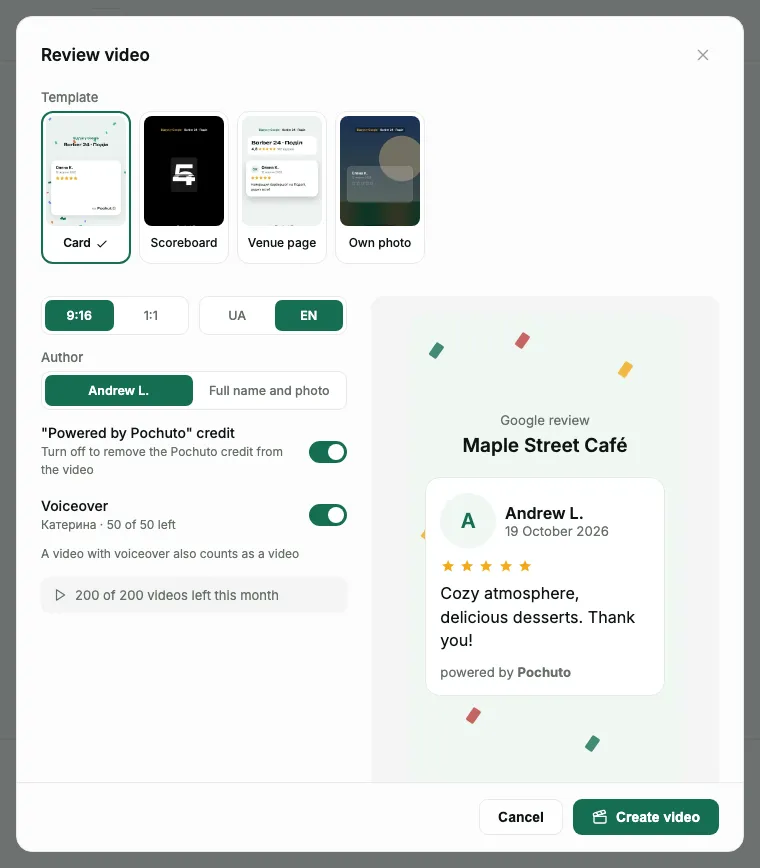
The settings window shows a preview of the first frame that changes right as you choose:
- Format - "9:16". The "1:1" square is available on the Business plan
- Caption language - "UA" or "EN"
- Author - "Shortened" (for example, "Olena K.") or "Full name and photo"
- The "Powered by Pochuto" credit - on Start and during the trial the video carries the Pochuto credit, and you can turn it off on Business
A video is usually created in under a minute. You can close the window: the video is saved on the review page. The duration depends on the text length and does not exceed 60 seconds, and the review text is shown in full, without cutting
Video templates
At the top of the settings window there is a "Template" choice of four tiles, on any plan. The preview changes as soon as you choose. The template applies to this window only: next time the window opens with "Card" again
- "Card" - the review on a clean background. This is the default template
- "Scoreboard" - a big rating and a short quote from the review
- "Venue page" - your venue, its rating and a feed of reviews. Pochuto picks up to three short 4-5★ reviews of this venue by itself, and in the "Neighboring reviews in the feed" settings you can "Replace" each one with any other Google review of the same venue. If there are not enough reviews for the feed, the dashboard says "Not enough reviews for the feed - the video will be made without it". If the review has your reply, the "Show the owner's reply" switch appears: it is off by default, a reply of up to 3 lines goes under the review, a longer one goes in a separate frame
- "Own photo" - the review over your photo. In the "Background photo" field choose or drag in a JPEG, PNG or WebP up to 15 MB; without a photo the dashboard says "Add a background photo" and does not create the video. The photo is not stored: the temporary copy is deleted after the video is created. Upload only a photo you have the rights to
The template does not affect the limit: every video you create, with any template, uses one video from the monthly limit
The video limit and how long it is stored
- The monthly limit - 10 videos on Start and during the trial, 200 on Business. Each new video uses one from the limit, and what is left is shown in the settings window
- Opening again with the same settings returns the same video and does not use the limit
- A failed generation does not use the limit
- It is stored for 24 hours. After that the video and the QR code link do not open, and the next press creates the video again
Changing the settings creates a new video and uses one more video from the limit. Publishing a video to social networks does not use the limit
When the video is ready, the window has "Download" and "Share" buttons and a QR code: point your phone camera at it, and the video opens there, where it is easy to send to Instagram, Telegram or Viber. The link works as long as the video is stored. A subscription in the "canceled" or "ended" status does not allow creating a video - the button leads to payment, see Billing and plans
Voiceover
Voiceover adds a voice to the video that reads the review text. Only the review text is read: the author's name, the date, the rating and your reply are not voiced. Without voiceover the video comes out without sound, as before
Voiceover is available only on the Business plan. On Start and during the trial, the "Video voice" section in Profile shows the "Voiceover is available on the Business plan" panel with a "Switch to Business" button, and the switch in the video window is locked: it carries a "Business" mark and a "View plans" button. Plans are in Billing and plans
The voiceover limit
- 50 voiceovers per calendar month by Kyiv time, for the whole account, not for each location. What is left is shown in the video creation window and in Profile (for example, "This month you have 38 of 50 left")
- A video with voiceover uses both a voiceover and one video from the monthly video limit (200 on Business)
- Opening again with the same settings and the same voice within 24 hours returns the same video and uses nothing. A different voice creates a new video
- When the voiceovers are used up, the window says "Voiceovers for this month are used up - 50 of 50" and gives the date from which you can voice again. A video without voiceover is created as always
Where to choose a voice
The voice is chosen once in Profile, in the "Reviews" group, the "Video voice" section. The "Voiceover voice" list has ready voices that the Pochuto team selected and listened to in Ukrainian. Next to each is a "Listen" button: it plays a short sample that is already recorded, so listening uses nothing. The chosen voice is saved right away, Pochuto shows "Voice saved", and there is no separate save button
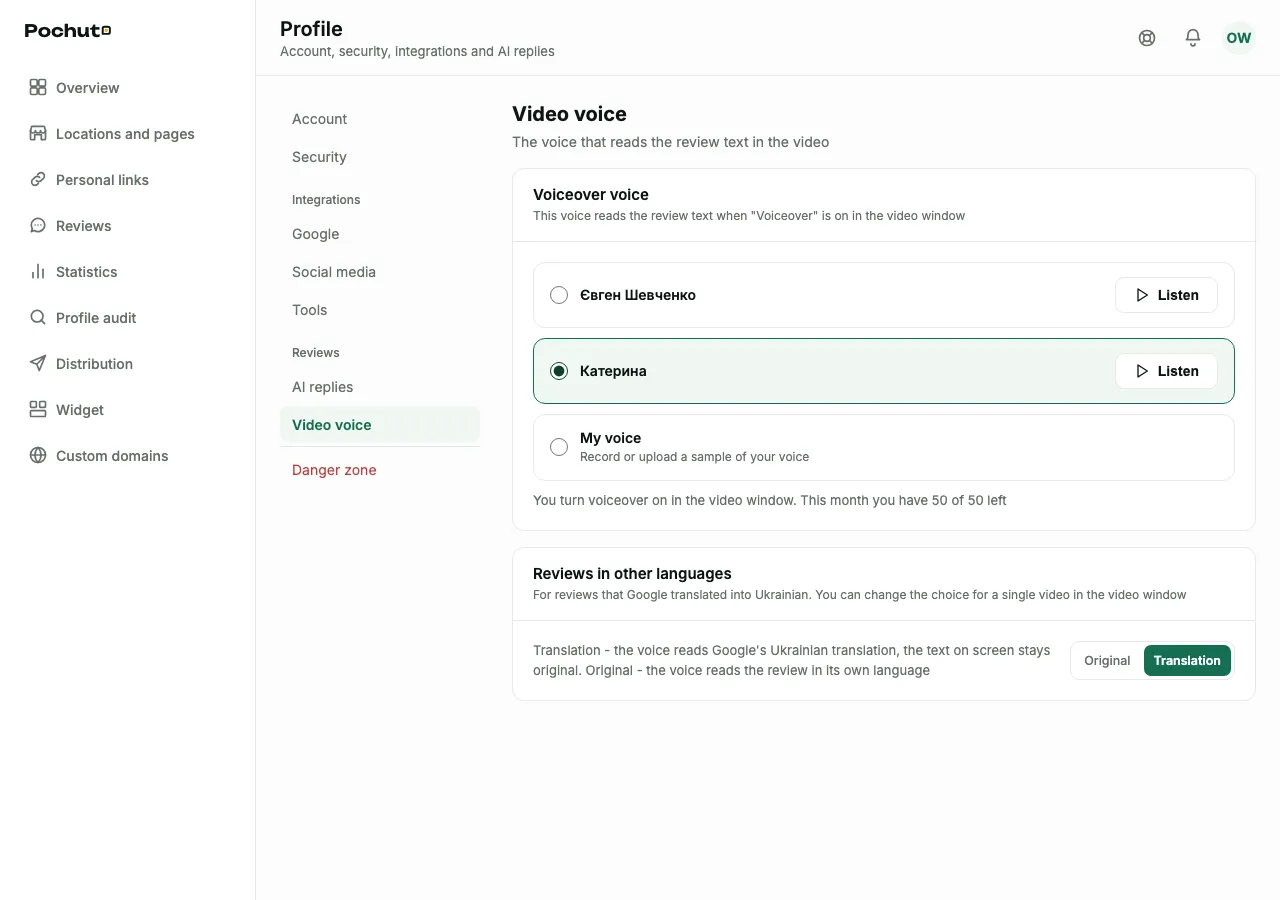
The list of voices may change. If a voice you chose is removed from the list, the section says so, and the switch in the video window asks you to choose another. Another voice is not substituted by itself, and videos already created stay until their 24 hours are up
My voice
Instead of a ready voice, reviews can be read by your own: in the list of voices choose "My voice". You need a sample of your voice, one of two ways:
- Recording from the microphone - the "Record from microphone" button. The form has a "Read aloud" card with ready text: read it in your usual voice, in quiet and without music. When you finish, press "Stop"
- A file - the "Choose a file" button. An mp3, m4a or wav file, 30 seconds to 3 minutes, up to 10 MB
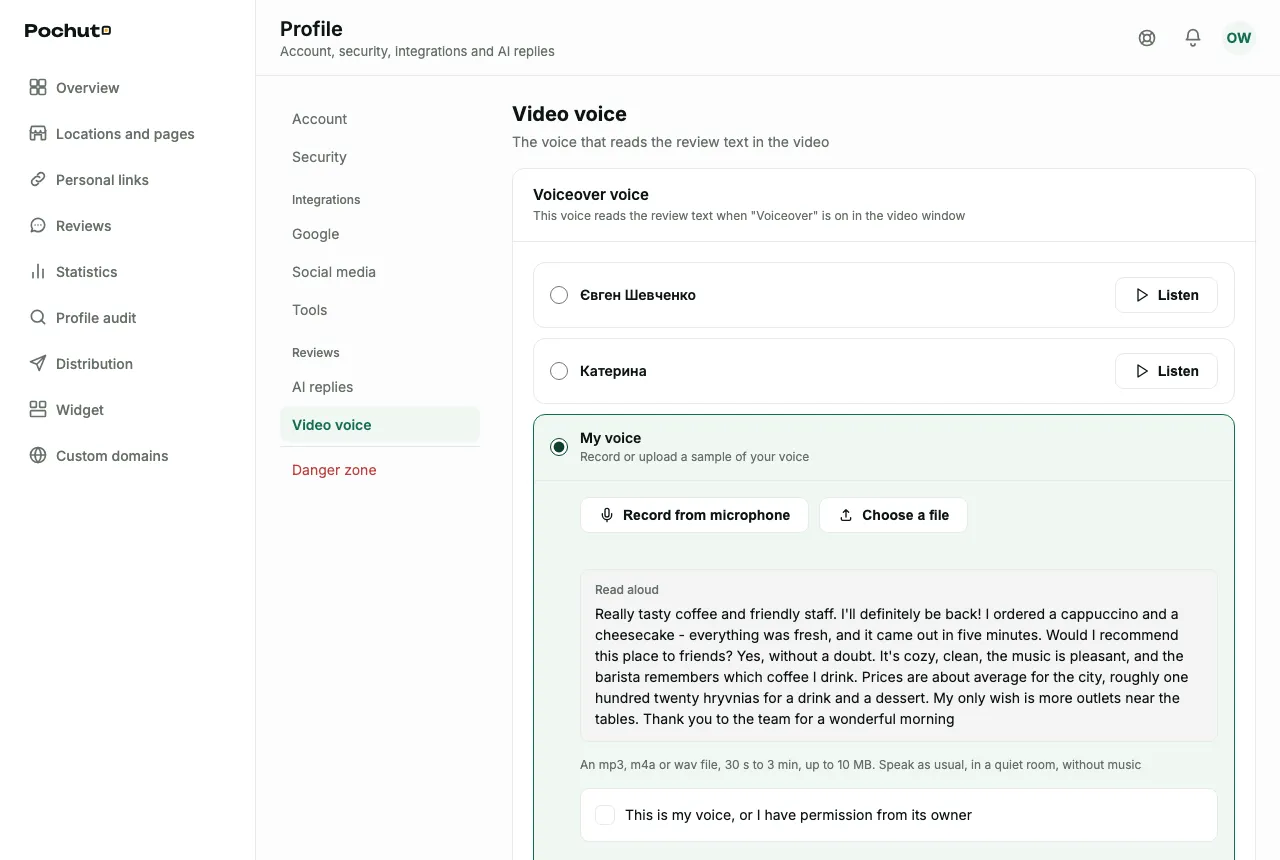
The sample must last from 30 seconds to 3 minutes, otherwise Pochuto asks you to choose another file or record again. Tick "This is my voice, or I have permission from its owner": without it the voice is not created. Press "Create voice", it takes up to a minute. When the voice is ready, the dashboard says "Your voice is ready and will read new videos"
- One own voice per account. A new sample replaces the previous voice
- The sample is not stored at Pochuto. It is needed only to create the voice: it is passed to the ElevenLabs speech synthesis service, and after the voice is created, successfully or not, Pochuto deletes the sample. Only the voice identifier stays with us. More in the privacy policy
- Deleting. The "Delete voice" button and the confirmation "Delete your voice?": the voice is deleted from ElevenLabs together with its voiceover recordings, and finished videos stay for the rest of their 24 hours. To voice with your own voice again, record it again
- Leaving Business (to Start, canceling or the subscription ending) deletes your own voice, while the choice of a ready voice stays. While the subscription is in the "awaiting payment" status, the rights to voiceover and your own voice are kept
If there is no access to the microphone
If the browser did not get permission, the dashboard says "No access to the microphone". Most often it means you pressed "Block" on the earlier request. To fix it:
- Click the lock icon to the left of the address bar, open Microphone and choose Allow. The item names differ slightly between browsers
- Reload the page and press "Record from microphone" again
- If the request still does not appear, check the system permission for the browser itself. On macOS: System Settings, Privacy & Security, Microphone. On Windows: Settings, Privacy, Microphone
If the dashboard says "Couldn't record your voice", it is not about permission: check that the microphone is connected and not used by another app. The fallback in both cases is to record the voice in any app on a phone or computer and choose the file with the "Choose a file" button
How to add voiceover to a video
- Choose a voice in Profile. Until a voice is chosen, the switch in the video window shows "Choose a voice first" with a "Choose a voice in your profile" link
- In the video creation window turn on the "Voiceover" switch ("A video with a voice reading the review text"). Next to it you see your voice and the voiceovers left. The switch position is remembered for next videos, and by default it is off
- Set up the rest as usual and create the video. The sound in it is the chosen voice reading the review text
The duration of a voiced video is no less than the sound and no more than 60 seconds. If the review text has no words, only emoji, digits or symbols, the switch is unavailable with the explanation "The review has no words - nothing to read aloud", and a video without voiceover is created as always
Reviews in other languages
If a review is written in neither Ukrainian nor Russian, and Google has already translated it into Ukrainian (the text has a "Translated by Google" mark), a "Voiceover language" choice appears under the switch: "Original" or "Translation". "Original" - the voice reads in the language of the review, "Translation" - it reads Google's Ukrainian translation. The text on the video itself stays original. The dashboard translates nothing itself: only a ready Google translation is voiced. If there is no Ukrainian translation, there is no choice, and the original is read
The default is in Profile, the "Video voice" section, the "Reviews in other languages" setting (at first - "Translation"). In the video window you can change the choice for one video, and the Profile setting does not change. A translation does not use a separate limit: it is the same one voiceover
A review that is too long
Voiceover can last up to 60 seconds of speech. A review that is longer (roughly 1500 characters) is not voiced: the dashboard says "The review is too long for voiceover". Sound is never cut off or sped up. The video limit and the voiceover limit are not used, and you can press "Create without voiceover": the video comes out without sound, with the full review text
If voiceover failed for another reason, the dashboard says "Couldn't create the voiceover" and offers "Try again" or "Create without voiceover". A video without a voice is never created silently: the choice is always yours
Publishing to social networks: what to connect
Social networks appear in the dashboard gradually, after the platforms themselves review Pochuto. If there is no card for a network in Profile, publishing to it is not available yet
Connecting is in Profile, in the "Integrations" group, the "Social media" section: the cards "YouTube", "Instagram and Facebook" and "TikTok". Publishing is available on all plans - Start, the trial and Business - while the subscription is active. Pochuto publishes nothing without your press of "Publish", and the video goes out on behalf of your account
YouTube
- A YouTube channel on the Google account you connect, and you are its owner or a manager
- Permission to upload videos - on the Google screen leave it turned on, otherwise publishing will not work
- The video goes out on the channel as a Short
Press "Connect YouTube", choose a Google account and give permission. If the account has no channel, no connection is created: create a channel at youtube.com or choose another account. One channel is connected to the dashboard: another one replaces the previous. The YouTube connection does not depend on Google Business Profile or login with Google, even if it is the same account
Instagram and Facebook
- For Facebook - a Page you manage. Publishing goes to the Page, not to a personal profile
- For Instagram - a professional account (business or creator). It can be connected together with the Facebook Page it is linked to, or separately, without a Page - with the "Instagram" button
- On the Meta screen select the Page or Instagram account and allow publishing - leave all the checkboxes
Press "Log in with Facebook", after returning select the Pages and press "Connect Pages". The Instagram linked to a Page is connected together with it. You can connect several Pages and add more later with the "Add a Page" button: Pages that are already connected stay as they are. If no Instagram is linked to a Page, it is connected as "Facebook only": switch the Instagram account to business or creator, link it to the Page in Instagram settings and log in again
To connect Instagram without a Facebook Page, press "Instagram" (in the card hint - "Instagram only"). In the Meta window choose the Instagram account and the business portfolio: Meta will ask you to choose an existing one or will create one itself. One login connects one Instagram. It must be a professional account (business or creator): a personal account, even with a professional dashboard, is not connected - Pochuto shows how to switch it and stores nothing. After returning, the card shows a row with the Instagram account and a single place to publish - Instagram, without Facebook
One Instagram can be connected in only one way. If you connect the same Instagram another way, the new connection replaces the previous one: the Facebook Page stays with its Facebook place, and videos already published stay in the history. A publication you managed to start before the replacement will not go out the old way - publish the video again
Did not find any Page? Check that you are an administrator of the Page or have publishing access. If the Page is managed through Meta Business Suite, on the Facebook screen also select its business portfolio, not just the Page
TikTok
- The TikTok account you log in with. One account is connected to the dashboard
- Permission to publish video - on the TikTok screen leave all the checkboxes
- TikTok gets only vertical 9:16 video
While TikTok reviews Pochuto, only you see the post, and the TikTok account itself has to be private. Once TikTok approves it, the restriction goes away by itself
Press "Connect TikTok", log in and give permission. After returning, the card shows the account name and a "Disconnect" button
How to publish a video
- Create a video and open the ready one. Under it is the "Publish to social networks" button. If no network is connected, there is a "Connect a social network" link to Profile instead
- In the "Where to publish" window select one or more places: the YouTube channel, Instagram and the Facebook Page of each connected Page, TikTok. A place that cannot be selected now shows the reason: for example, access is lost or the video is the wrong format
- Check the settings of each selected place (below) and the video caption
- Press "Publish". Publishing runs in the background, you can close the window: the status of each place stays under the video
Place settings
- YouTube
- The video goes out as a Short. The Short title is the video caption, up to 100 characters
- The Reels or Stories format. For Reels you can keep "Also show in the feed", but whether the Reel appears in the profile feed is decided by Instagram. Stories do not show a caption. Instagram accepts only vertical 9:16 video
- Facebook Page
- A vertical video goes out as a Page Reel, a square 1:1 one (Business plan) as a post in the Page feed
- TikTok
- "Publish now" or "To TikTok drafts". Now - choose who can see the video (there is no default), whether to allow comments, duets and stitches (off by default; what is turned off in your TikTok is unavailable) and whether it is commercial content: your brand ("Promotional content") or branded content ("Paid partnership"), which cannot be private. To drafts - the video arrives in the TikTok app notifications, and you set the settings and the caption there
The video caption
There is one caption for all selected places. By default it is a short line with the author's name and the first letter of the surname and the business name, with no hashtags, in the caption language of the video. You can change the caption within the strictest limit among the selected places:
- YouTube - up to 100 characters (this is the Short title)
- Instagram and Facebook - up to 2200 characters, no more than 30 hashtags and 20 mentions
- TikTok - up to 2200 characters; the caption is not passed to drafts
If the caption does not fit, a message under the field says for which network to shorten it or which network to uncheck. The caption is not saved: next time the default caption is filled in again
Only the video from this review goes to social networks, with the caption you saw before publishing. Complaints from the Pochuto form never reach social networks
Publication statuses
The status of each place is shown under the video on the review page, and it stays after a reload and after the video itself is no longer stored. A failure in one place does not stop the others. Pochuto does not write about a failure either in Telegram or by email - only the status in the dashboard
- Publishing
- Usually up to a few minutes. While a publication is running, a second publication of this video to the same place is not started. TikTok processes the video longer: it may appear on the profile after a few minutes
- Published
- There is a date and a button to open the post. For the first minutes YouTube may show the Short as a regular video - it moves into Shorts by itself. Publishing again to the same place only with the "Publish again" confirmation: a second post will go out, and the first stays
- Sent to TikTok drafts
- Finish publishing in the TikTok app
- Could not publish
- The reason is written in words, without the raw platform response, and there is a "Try again" button while the video is still stored. Pochuto retries temporary failures itself, and the "could not" status appears when publishing did not finish within 15 minutes or the platform rejected the video
- Still checking
- The previous attempt is still uploading, so trying again is unavailable. It appears when it finishes - this way you do not get two identical posts. If the attempt still succeeds, the status becomes "Published"
- Check the account
- The video may have been published, but there is no confirmation from the platform. Look at the account before publishing again. Trying again only with confirmation
- Access lost
- The permission was revoked or has expired. New videos are not published to this network, and the card in Profile shows "Access lost" with a "Connect again" button
Platform limits
- YouTube - no more than 5 publications per day from one Pochuto account, in total, not per video. Every attempt counts, including retries and failed ones, except one that did not start through our fault. A new day starts at 00:00 Kyiv time. The reason is the shared YouTube Data API quota for the whole service
- Instagram - up to 100 publications through third-party services per 24 hours per account, this is Instagram's limit (per Meta documentation)
- Facebook - up to 30 Page Reels through third-party services per 24 hours, this is Facebook's limit (per Meta documentation). For some Pages, Meta first requires Page Publishing Authorization to be confirmed in the Page settings
- TikTok - the publication limit per account is set by TikTok, with no more than 5 unpublished drafts per 24 hours. The video duration is limited by your TikTok account: if the video is longer, the TikTok place cannot be selected
Pochuto does not count the Instagram, Facebook and TikTok limits itself: when the platform refuses, the reason is visible in the status of the place
If the video is no longer available
The video is stored for 24 hours, and there is no deferred publishing. If the time has passed before you press "Publish", publishing does not start, and the dashboard offers "Create again". This uses 1 video from the monthly limit (during the trial, from the trial limit), which the window warns about. You publish the new video as usual. A publication you managed to start before the time ran out completes
Disconnecting and revoking access
In the network card press "Disconnect" and confirm; in the "Instagram and Facebook" card each Page has a button that disconnects only it together with its Instagram, and an Instagram connected without a Page is disconnected with its own "Disconnect" button and does not touch the Pages. Pochuto stops storing access and revokes it on the platform's side (for Facebook - when the last of your Pages is disconnected; for Instagram without a Page - if the business portfolio is no longer connected to Pochuto, we ask Meta to revoke access, and you can reliably remove it yourself in the Meta business portfolio settings: remove access for Pochuto), while videos already published stay on the platforms. Disconnecting works even if the platform is unavailable at that moment
You can also revoke access in the platform itself - in the settings of your Google, Facebook, Instagram or TikTok account, in the section about third-party apps: then the next publication shows "Access lost", and the card offers to connect again
An Instagram connected without a Page relies on access through the Meta business portfolio. If you remove access for Pochuto in the business portfolio settings (or revoke access there another way), the card shows "Access lost" for this Instagram at the latest during the next publication, and publishing to it will not happen. Other connections do not change. To get access back, press "Connect again"
Access is stored encrypted while the connection is active, and is not shown either in the dashboard or in logs. If the Pochuto account is in the restore window after deletion, the connections are kept, but publishing does not run. At the final deletion, access is revoked, and videos already published stay on the platforms
Questions and answers
- Does publishing use the video limit?
- No. Publishing, a retry and a failure do not use the limit. The limit is used only for creating a video, including a new video in place of ones that are no longer stored
- Does voiceover use the video limit?
- Yes, a voiced video uses one voiceover out of 50 per month and one video from the video limit. Opening again with the same settings and a failed generation use nothing
- Does Pochuto store a sample of my voice?
- No. The sample is needed only to create the voice: after it is created, successfully or not, Pochuto deletes it. The voice itself can be deleted in Profile, the "Video voice" section, the "Delete voice" button
- Can I connect Instagram without a Facebook Page?
- Yes, if the account is professional (business or creator). In the "Instagram and Facebook" card press "Instagram", and choose the account and the business portfolio in Meta. A personal account cannot be connected. Another way is to link Instagram to a Page in Instagram settings and connect through Facebook
- Why can I not select Instagram and TikTok for a square video?
- They accept only vertical 9:16 video. A square 1:1 one can be published to YouTube and to a Facebook Page - as a post in the feed
- Why is the video not published although the network is connected?
- Check the status of the place under the video: a failure shows the reason. Most often it is lost access (connect again), a platform limit (try later) or a video that is no longer stored (press "Create again")
- Will published videos disappear after disconnecting?
- No. Disconnecting stops new publications. Videos already published stay on the platforms, and you can delete them there