QR codes and tags: what to print and where to put it
One QR code for the whole cafe tells you how many reviews were collected overall. Separate codes for tables, a display case or a receipt tell you which exact spot works - and it costs exactly the same
The general link
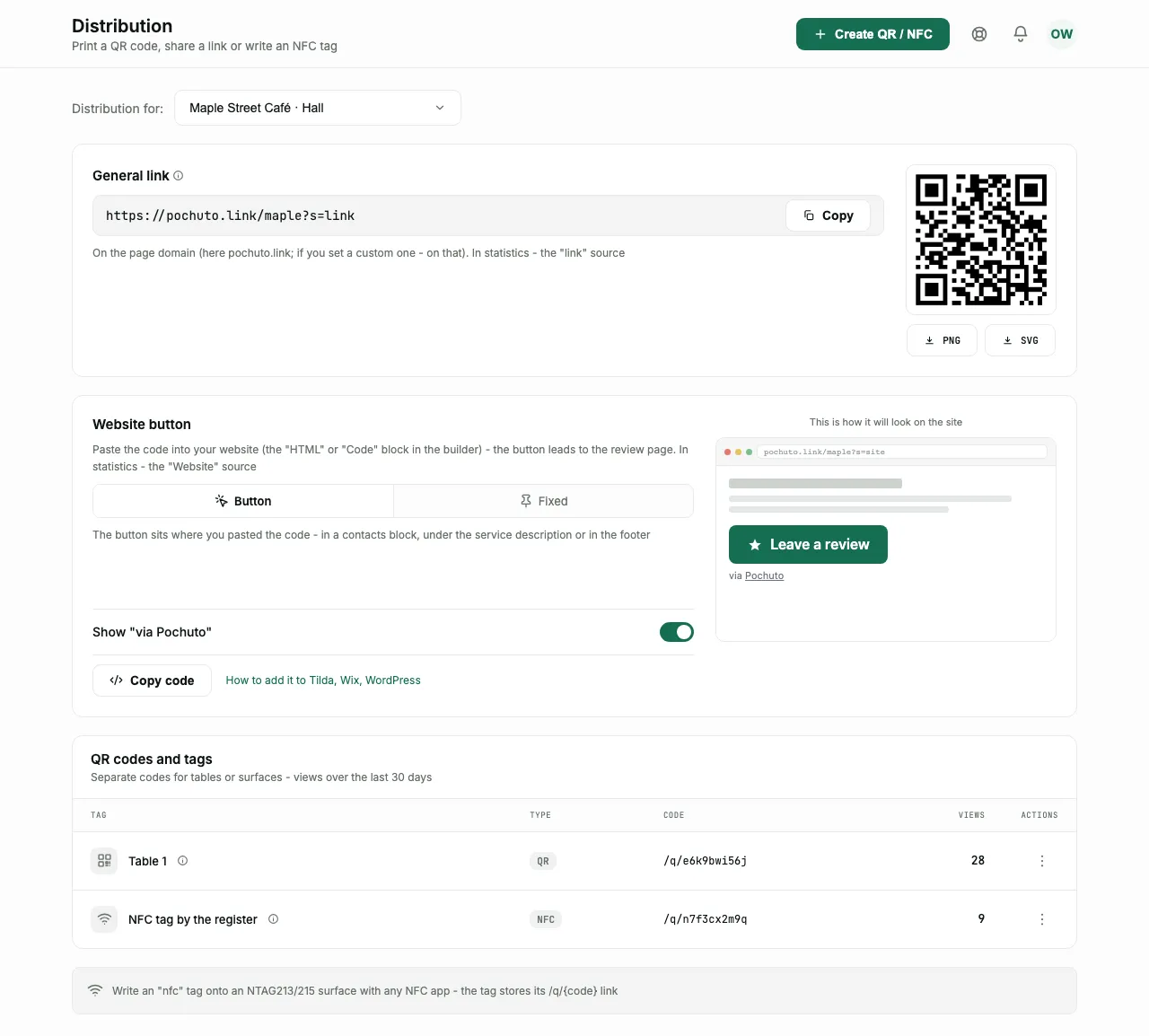
The "Distribution" section opens with a "General link" card - this is the address of the review page itself and a QR code for it. It fits wherever you don't need to tell spots apart: one sign, one plate at the till, a link in your Google profile. Distribution is tied to a review page: if you have several pages, there is a "Distribution for:" selector at the top, and everything below applies to the chosen page
Next to it are buttons to download the QR code as PNG or SVG. In statistics, visits through it are labeled with the source "link"
The website button
Under the general link is a "Website button" card: ready code to paste into your business website (the "HTML" or "Code" block in a builder - Tilda, Wix, WordPress, Google Sites). A visitor taps the button and lands on the same review page as from the QR code or the general link
This isn't just one more way to hand out a link. A bare link to a Google review, opened in the built-in browser of Instagram, Telegram or Viber, often loses the Google session and doesn't let the person leave a rating. A Pochuto page knows how to get around this problem - the button on the site leads there, not straight to Google
There are two styles to choose from. "Button" is static markup that sits where you pasted it: in a contacts block, under the service description or in the footer. "Fixed" is a widget pinned to a corner of the screen (left or right, you choose with the position setting) and visible on every page of the site: a round icon button with a subtle pulse next to a label pill whose text flips from time to time so it gets noticed. The whole strip is clickable - the button, the pill and the gap between them
Under the "Button" style there is a small "via Pochuto" label: that is how other owners learn about the service when they see the button on your site. The label can be turned off with the switch next to it (the dashboard notes that this is possible on the Start plan). The fixed widget has no label - there is simply no room for it in a corner circle
The fixed widget on the right deliberately sits further from the bottom edge than on the left - support chat widgets most often stand in the bottom right corner of sites, and the button shouldn't land on top of them
In statistics, visits through this button are labeled with a separate "Website" source - so you can see whether it is really used, not just that it was pasted
Separate tags for specific places
Below is the "QR codes and tags" table with the caption "Separate codes for tables or surfaces - views over the last 30 days". Each tag has its own short code like /q/… , which leads to the same review page but is counted separately
The "Create QR / NFC" button asks for only two things: the tag name (the field hints at it - "Table 1") and the surface type - "QR code" or "NFC tag". The name matters only to you: the customer doesn't see it, and you recognize the row in statistics by it
The point of separate tags is that they turn guesses into numbers: a table by the window versus a table by the entrance, a display case versus a receipt, the dining room versus delivery. A month later you can see which surface really works and which only takes up space
QR versus NFC
The difference isn't in what the customer gets - the address is the same. The difference is in the surface
- A QR code is printed: a sticker, a sign, a receipt, a poster. It works on any phone with a camera
- An NFC tag is a physical sticker with a chip that the customer holds their phone to. It looks more impressive, but it doesn't work on every device and costs money per piece
To write an NFC tag, take an NTAG213 or NTAG215 surface and any NFC writing app. The row menu has a separate "Copy link to write onto a tag" item - that is the address to write onto the chip
A layout for a sign or sticker with an area for the tag, and writing the address from a phone, are in the free QR code generator - no sign-up
Printing without losing quality
A QR tag can be downloaded in two formats, and the choice between them is not a matter of taste but of print size. An NFC tag has no image - the address is written onto the chip
- PNG - for a sticker or a table sign; a ready raster, can be placed anywhere
- SVG - for large formats: a poster, a sign, a banner. It stays sharp when scaled
Don't crop the white margin around the QR code and don't shrink the picture until it blurs - without the margin, or on a blurry raster, a phone camera simply won't recognize the code. This is the most common reason for the complaint "the QR code doesn't scan"
Managing tags
In the row menu of a QR tag you can download the QR code (PNG or SVG) and copy the link; for an NFC tag, instead, copy the address to write onto the tag. After that, for both, you can rename, open the statistics of that tag specifically, and deactivate or activate it again
Renaming breaks nothing: the code and address stay the same, so a tag that is already stuck up keeps working. This matters when a table has moved or a spot was named badly
Deactivation is the opposite: the tag stops working, and a surface you've already printed leads nowhere. If a sign is being moved to a new spot, it is better to rename the tag than to create a new one
You can create up to 200 tags for one review page. This is not a plan limit but a technical boundary, and in a real business it is out of reach - if you try to exceed it, the dashboard says the limit is reached
What it costs
Tags are free - neither creating them nor the separate statistics for them is paid. You can create as many as you need
FAQ
- How many different QR codes make sense?
- As many as the places you want to compare with each other. Two or three surfaces already give a useful picture, dozens of identical stickers don't
- What if a sign was moved to another place?
- Rename the tag in the dashboard - the address and code stay the same, and the row in the statistics is immediately named correctly
- Can I print the QR code in a large format?
- Yes, that is what SVG is for: it stays sharp when scaled, unlike PNG
- Why does a tag show zero views?
- The column counts views over the last 30 days. A fresh tag or a surface nobody has scanned shows zero - it isn't an error